Purpose: The purpose of this document is to provide a process to install or reinstall Intergy applications
Audience: DamonTek internal staff
Authorizations: Changes to this document/process can only be requested by DamonTek management
Systems Impacted: Windows/Intergy
(Note that document authors/editors and audit trail are tracked in the document properties)
Process Steps:
- Navigate to Syncro and find the device.
- Go to the scripts tab in the device
- Click the + Add to Queue
- select Application - Intergy (Caution - Automated Install!) - Batch for the script and hit run
- Let it run and it will automatically install intergy
Reinstall
If Intergy is having issues it may be worth to Restage the device. Runnni
Process Steps:
- Navigate to Syncro and find the device.
- Go to the scripts tab in the device
- Click the + Add to Queue
- select Application - Intergy (Caution - Automated Install!) - Batch for the script and hit run
- Let it run and it will automatically install intergy
Previous Iterations
Instructions to install a fresh Intergy Client or to reinstall a failed upgrade of an Intergy Client.
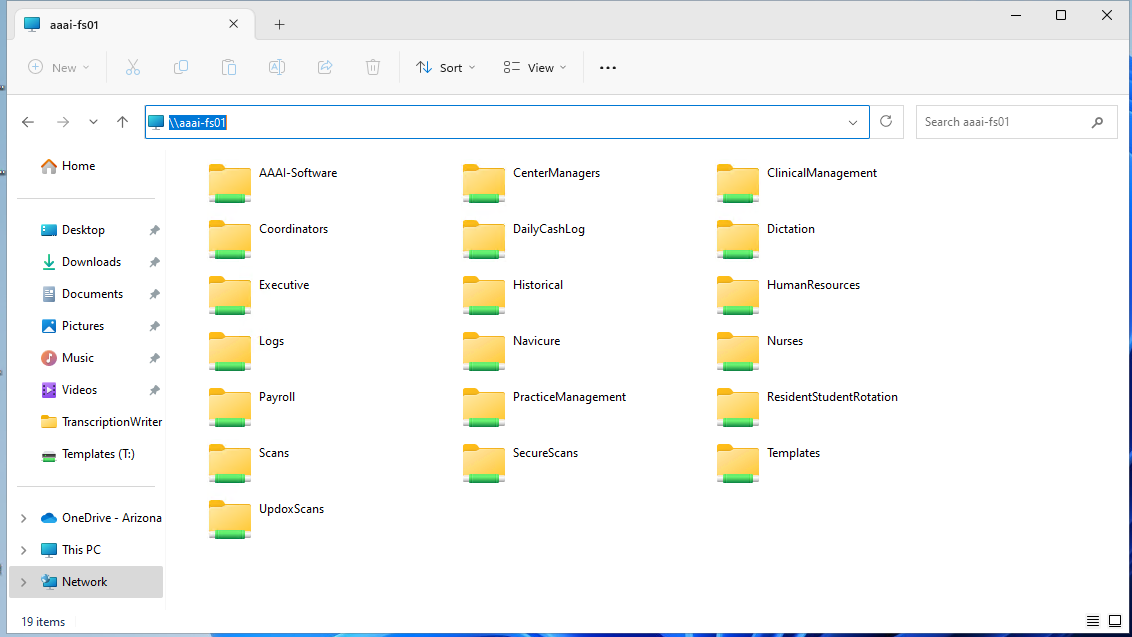
1) While in the device that needs Intergy, navigate to file manager and type in aaai-fs01 Like so
2) go to AAAI-Software -> Installers -> Intergy and do the Install-Intergy.cmd
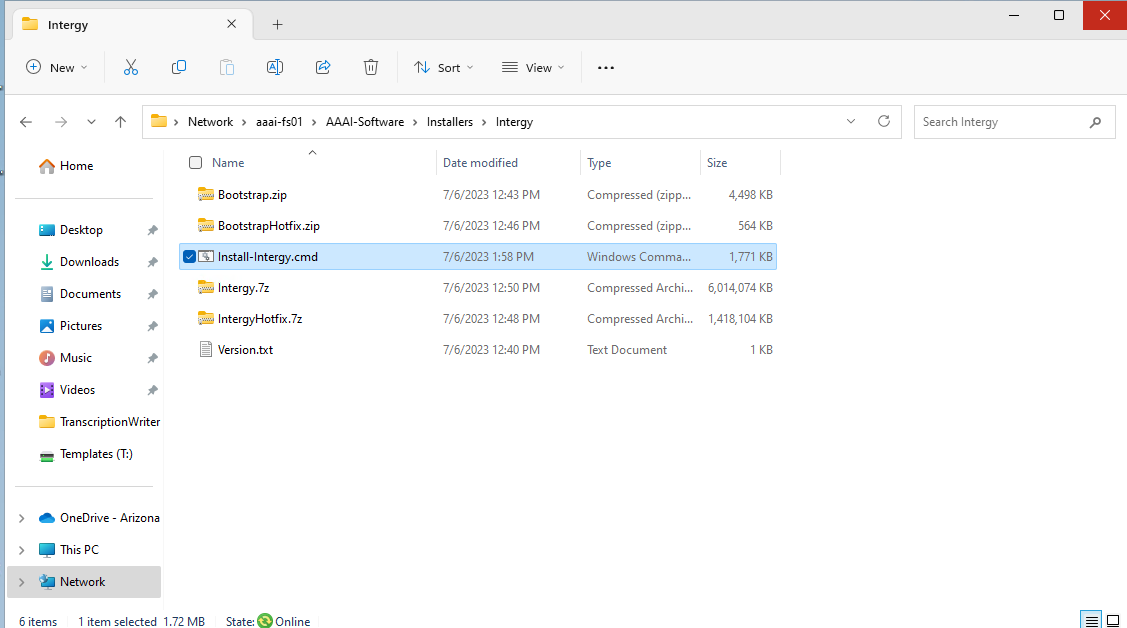
3) It will ask for Admin Credentials, you can just click yes or if it asks for a login do your azsneeze.onmicrosoft.com account
4) After elevating it just leave it do its thing. If it is installing from scratch, it will take about 1-2 hours.
Older Versions
If the client had previously been installed, you must first purge the old instances. If not, run step 1, skip steps 2 and 3, and run steps 4 and 5.
This is a five step process.
Step 1 – Download the installation files. The installation files will consist of one folder for the latest release and one folder for the latest patch updates. Both will need to be installed to bring the client up to the latest version. The installation files are found on the INTERGYSERVER.
Copy the files for the release and the hotfix patch level to match the server, which is currently HotFix 07, (do not install hot fixes that have not yet been installed on the server) from \\intergyserver\upgrades down to the desktop of the machine where the installation will occur.

Step 2 – Run the Intergy Purge program. Remove all prior Intergy components by running the purge program. Run the program as administrator. The program is found in the release folder that was downloaded in the sub-folder called Tools. Accept and click through all the defaults.
Completion of the program will request a system reboot.
Step 3 – Go to Control Panel - > Add Remove Programs. Uninstall every Greenway and/or Intergy component that is still on the system. There are typically two components:
- Greenway Intergy Practice Portal
- Greenway Intergy HER
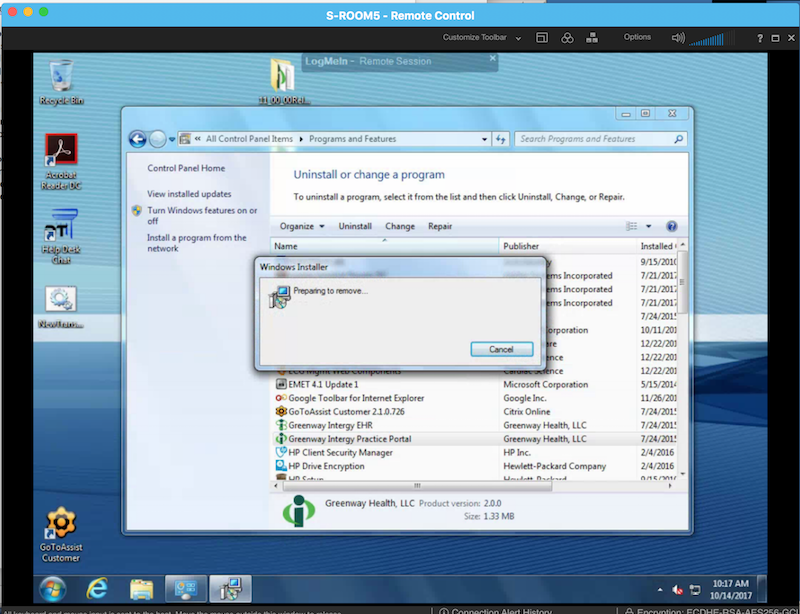
Step 4 – Install the Intergy release. Go to the release folder that you downloaded in Step 1. Open the release folder and find the file Setup.exe. Right click and run as administrator. Follow the prompts accepting the defaults. When the Intergy server name is requested, enter INTERGYSERVER. When you are asked which components to install, select the top two options which are Intergy EHR and Intergy Transcription Writer.
Completion will request a reboot of the system. When the system reboots, you will see a command window showing precompiled tasks running.
Step 5 - Install the Intergy hotfix. Go to the hotfix folder that you downloaded in Step 1. Open the hotfix folder and find the file FullSetup.exe. Right click and run as administrator. Follow the prompts accepting the defaults.
Completion will request a reboot of the system. When the system reboots, you will see a command window showing precompiled tasks running.
Was this article helpful?
That’s Great!
Thank you for your feedback
Sorry! We couldn't be helpful
Thank you for your feedback
Feedback sent
We appreciate your effort and will try to fix the article