Purpose: The purpose of this document is to provide a step-by-step walkthrough to disable a users' credentials for Arizona Asthma
Audience: DamonTek internal staff
Authorizations: Changes to this document/process can only be requested by DamonTek management
Systems Impacted: All AAAI systems
(Note that document authors/editors and audit trail are tracked in the document properties)
Process Steps:
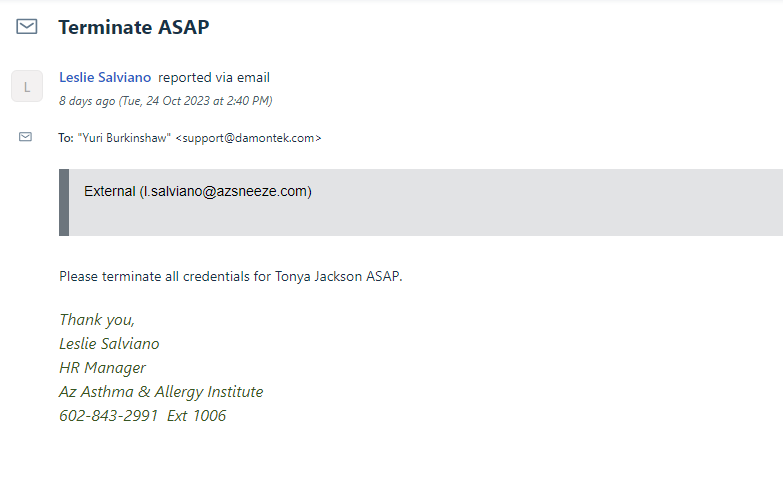
You will get a ticket like this from srvc-process requesting to disable an users' credentials. You will need to change the contact to the user requesting, currently only Leslie Salviano.
Windows/Email Disabling Accounts
1) Go to Syncro and remote into AAAI-DC-01 using your Damontek Admin login. Once you have logged in, open the user and computer program by opening the start menu and typing users and computers.
2) Next search the domain tree to get to active users. The path is medman.com -> AAAI -> Accounts -> user accounts
3) Find the user and right click on the user and select disable account
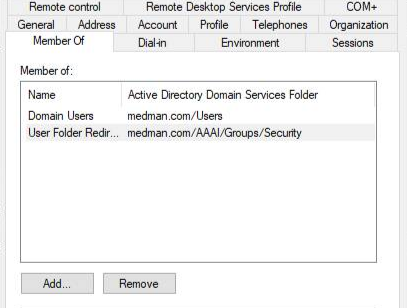
4) Next right click the user again and go to properties and go to the “member of” tab. In this tab you will delete all groups except Domain Users and User Folder Redirection Group
 .
.
5) Next drag or right click and select move the user to the “Disabled User Accounts” folder.
6) Navigate to admin PowerShell (win + x then a) or from the start menu right click PowerShell and hit run as admin. Next run this script to force a sync of the DC "Start-ADSyncSyncCycle"
7) Next go to https://admin.microsoft.com in your browser and once again enter the Damontek Admin credentials and click users -> active users and search for the user. Select the user you created and hit "Licenses and Apps". Unselect BOTH Microsoft 365 business standard and Microsoft Defender. Also make sure it says sign-in blocked on the top and then scroll down and hit save changes.
8) Navigate to https://portal.azure.com, go to Azure Active Directory->Users. Find the user and go to edit properties. Here you will search for “account enabled” and uncheck the box to disable the account and hit save after.
9) Open a private browser tab https://login.microsoftonline.com and sign in with the users' credentials to make sure that they cannot log in. After this you are done with this part and can now go to the Intergy part. (Not necessary)
Intergy Disabling
10) Next navigate to the remote desktop app (orange one) and sign in with your Damontek Admin login. Once you sign in, open the remote desktop.
11) Next open the start menu and search Intergy System Admin. Log in with your Intergy credentials.
12) Click the icon that looks like a lock and key titled users and security. It will have a search bar that you can use to search for the same reference user provided by the HR lead. Usernames in Intergy are first initial lastname (tchester).
13) When you find the account near the bottom of the window there should be a box that checks and says, "prevent login" and check that box.
UpDox
14) go to updox -> greenway -> menu ->admin -> users
15) find your user and under Direct address uncheck the active box
CoreDial
16) sign into Coredial https://ucaas.damontek.com with your damontek account
17) navigate to customers -> Arizona Asthma & Allergy Institute (AAAI) -> Settings -> Manage Users | Users
18) Find your users or click the notepad or the user ID to edit
19) find the Enabled check box and make it unchecked.
20) After scroll down to the extensions and remove any extensions they have. Hit save and you are good to go
Was this article helpful?
That’s Great!
Thank you for your feedback
Sorry! We couldn't be helpful
Thank you for your feedback
Feedback sent
We appreciate your effort and will try to fix the article